




Microsoft Excel Macros                       Tutorial on Excel macros


Excel VBA Macros

Excel Macros Table of Contents

Excel Visual Basic Editor

Excel Macros Vocabulary

Excel Userforms

Excel Consulting

Excel Tutorial on Macros

VBA for Excel Lesson 10: VBA Macros Security and Protection in Excel (Excel 2007 and 2010)

Note 1: You will change the security setting one single time. You will not have to do it again. Tell your colleagues about it specially if you want to send them Excel workbooks with macros. The setting suggested here is totally safe and you will not make your computer vulnerable to any virus.

Note 2: If you are using Excel 1997 to 2006 see lesson 10 here

Special note for users of Excel 2007: See how to install the Visual Basic Editor from your Office CD and set the security level of your Excel.

If you send a workbook with macros to a colleague and he can not get them to work it is probably because his security setting is at "High" . Tell him how to change his level of security by going to the "Developer" ribbon, clicking on "Macro Security", selecting "Macro Settings and checking the second level "Disable all Macros with Notification" and you are set.
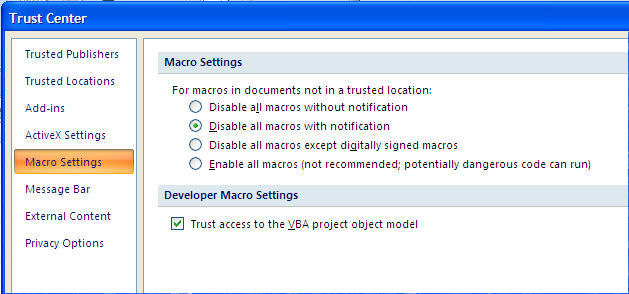
From then on each time you open a workbook that contains macros a temporary status bar appears above the grid in Excel:

Click on "Options" and the following dialog window will appear.
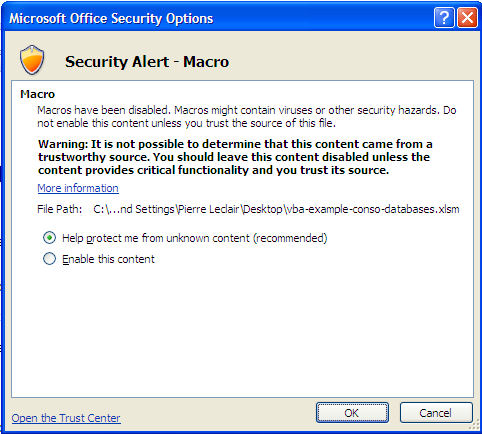
VBA for Excel Security macros enable window

Adopt the same attitude as you have with documents attached to Emails. If you know the origin of the file you may enable the macros if not click on "Disable Macros" and you are fully protected. You can look at the workbook but the VBA procedures (macros) are not operational. You can go to the Visual Basic Editor to take a look at the macros. If nothing looks suspicious close the workbook and re-open it enabling the macros.

Password Protecting the code

As an Excel-VBA Developer you might want to protect your code so that nobody else may modify it. In the VBE editor go to "Tools/VBAProject Properties/Protection" . Check the box and submit a password. Make sure that you save the password somewhere that you will remember. If ever you loose the password for an important workbook you can always buy a program on the Internet that will allow you to view the code even if it is password protected.

Remember that passwords are like any locks, they only keep the honest people out.

We hope you have enjoyed this introduction to lesson 10
for more on this topic and a complete course on Excel macros download the
Tutorial on Excel Macros


Go to the next section
Section 2 : Excel VBA (Macros) Vocabulary


Excel macros: exercises for beginners


The Tutorial on Excel Macros (VBA)
36 complete lessons and 25 Excel spreadsheets
In a single, easy and quick download

Click on the image to the left to
Download this tutorial on your own computer
And learn at your own pace

Reviewed and improved each year
Covering Excel 1997 to 2011


Learning Excel Macros


Excel Tutorial on Macros

Excel VBA Macros

Excel Macros Table of Contents

Excel Visual Basic Editor

Excel Macros Vocabulary

Excel Userforms

Excel Consulting

The following is for Excel 1997 to 2006 users

Microsoft Excel Macros                              


Excel VBA Macros

Excel Macros Table of Contents

Excel Visual Basic Editor

Excel Macros Vocabulary

Excel Userforms

Excel Consulting

Excel Tutorial on Macros

VBA for Excel Lesson 10: VBA Macros Security and Protection in Excel

Note: If you are using Excel 2007 or 2010 see lesson 10 here

If you send a workbook with macros to a colleague and he can not get them to work it is probably because his security setting is at "High" . Tell him how to change his level of security. From the menu bar he selects "Tools/Macros/Security"and follows the instructions  to set the level at "Medium".

From then on each time he opens a workbook that contains macros the following dialog window will appear.

VBA for Excel Security macros enable window

Adopt the same attitude as you have with documents attached to Emails. If you know the origin of the file you may enable the macros if not click on "Disable Macros" and you are fully protected. You can look at the workbook but the VBA procedures (macros) are not operational. You can go to the Visual Basic Editor to take a look at the macros. If nothing looks suspicious close the workbook and re-open it enabling the macros.

Password Protecting the code

As an Excel-VBA Developer you might want to protect your code so that nobody else may modify it. In the VBE editor go to "Tools/VBAProject Properties/Protection" . Check the box and submit a password. Make sure that you save the password somewhere that you will remember. If ever you loose the password for an important workbook you can always buy a program on the Internet that will allow you to view the code even if it is password protected.

Remember that passwords are like any locks, they only keep the honest people out.


We hope you have enjoyed this introduction to lesson 10
for more on this topic and a complete course on Excel macros download the
Tutorial on Excel Macros


Go to the next section
Section 2 : Excel VBA (Macros) Vocabulary


Excel macros: exercises for beginners


Learning Excel Macros


Excel Tutorial on Macros

Excel VBA Macros

Excel Macros Table of Contents

Excel Visual Basic Editor

Excel Macros Vocabulary

Excel Userforms

Excel Consulting