








Discover Excel Macros
Discovering macros and programming in Excel is quite easy if you follow the right steps and learn the right things. The exercises below are a great start and they are FREE.
Excel macros are powerful tools and they will allow you to do much more with Excel and to do it more rapidly.
You can easily learn to develop your own macros or use one of a few thousands macros already developed by others and that are available on the World Wide Web.
3 Steps Get Started for FREE
Print this webpage and follow the instructions
Step 1:ONLY FOR EXCEL 2002 USERS: Installing the Visual Basic Editor for Excel: If you are using any older or newer version of Excel (1997-2006 or 2010) you do not need to install anything to work with macros in Excel. Everything is installed by default.
In Excel 2010 you might have to make the "Developer" ribbon visible by right clicking on the "Home" item of the menu bar and then selecting "Customize the ribbon...". Make sure that the "Developer" ribbon is checked.
But if you are using Excel 2007 you need to install the Visual Basic Editor for Excel from your Office CD.
Installing the Visual Basic Editor for Excel from your Office CD
Step 2: Setting the security level of Excel: To be allowed to use macros with your copy of Excel you have to set the level of security. The same applies for the people to whom you will be sending macros.
For users of Excel 1997 to 2006: You will set the security level of Excel at "Medium" so that you can use the macros (VBA procedures) that you develop. From then on each time you try to open an Excel workbook you will be asked to "Enable " the macros. If you receive a Workbook from an unknown source, do not enable the macros. You are then fully protected against the very rare bad macros.
From the menu bar of Excel select "Tools" then "Macro" then "Security" and select "Medium".
For users of Excel 2007 to 2010: From the "Developer" ribbon click on the "Macro Security" button. Check the second level "Disable all Macros with Notification" and you are set. From then on you will be asked to activate macros by an alert that shows above the Excel grid or within a dialog window.
Step 3 Setting up the Visual Basic Editor in Excel (VBE): When you want somebody to do some work for you, you open your Email program and you send him a message in a language that he understands (English, Spanish, French...). When you want Excel to do some work for you, you open the Visual Basic Editor and you write the instructions in a language that Excel understands and that is called VBA (Visual Basic for Application).
IMPORTANT NOTE 1: There are no risks to your computer or to Excel in completing the task below. At any time if you feel uncomfortable, just close Excel without saving the workbook and try again later.
The Visual Basic Editor is a program within Excel that allows you to communicate with Excel. We will open it and start by setting it up so that working within it becomes easy and efficient.
Open Excel and open a new workbook (Book1).
On your keyboard press the "ALT" key (left of the space bar) and hold, strike the "F11"key (the F11 key is at the top of your keyboard).You now see the Visual Basic Editor. Again press "ALT/F11" and you are back into Excel. Use the "ALT/F11" key to go from Excel to the VBA and back.
When you first open the VBE you will see is a window somewhat like the image below.

If there are any open windows within the VBE like in the image below click on the Xs to close them and see a gray rectangle filling up the bottom part of the screen like in the image above.
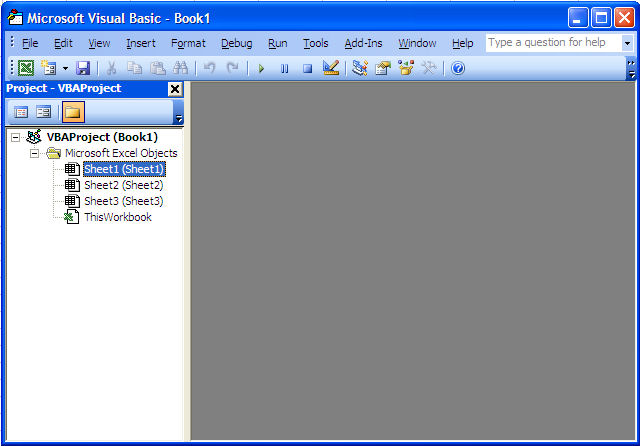
The Three Windows in the Visual Basic Editor
To be efficient when working with the VBE there should always be 3 windows showing like in the image below; the Project Window (1), the Code Window ( 2), and the Properties Window (3), arranged as in the image below. You can resize the windows by left-clicking where the red stars are, holding and moving sideways or up and down. We will study each of the three windows in lessons 2, 3 and 4 but first we will set them up in the VBE.

In the exercise below we will setup the 3 windows of the VBE.
Remember that you will perform this task only once as each time you will open the VBE it will remain setup.
Step 3-1: Close all the windows that are open in the VBE to end up with this:
Step 3-2: Go to the menu bar "View" and click "Project Explorer". The result will be somewhat like the image below:

If the project window already appears as a column on the left side of the screen there is nothing else that you have to do for now. If the project window appears in the middle of the gray area like above, right-click in the white space in the middle of the project window and check "Dockable". Then click on the top blue bar of the Project window, hold and drag it left until the cursor (white arrow) touches the middle of the left side of the screen. When you let go of the mouse button the end result should be like shown in the image below. Congratulations you have setup the first major window of the VBE.

Step 3-3: Move your cursor on the line separating the project window and the gray rectangle. When it turns to two small parallel lines and arrows click, hold and move the lines sideways. Resize the two windows as you want them.
Step 3-4: Go back to the menu bar "View" and click "Properties Window". The Properties window will appear somewhat like in the image below.

If the Properties window is already located below the Project window there is nothing left to do. If it shows like in the image above, right-click in the white space in the middle of the Properties window and check "Dockable". Then click on the top blue bar of the Properties window and drag it left and down until the cursor (white arrow) touches the center of the bottom of the Project window. When you let go of the mouse button the end result should be as the image below. Congratulations you have setup the second major window of the VBE.

Step 3-5: Move your cursor on the line separating the project window and the properties window. When it turns to two small parallel lines and arrows click, hold and move the lines vertically. Resize the two windows as you want them.
Step 3-6: To add the code window to the setup, you just have to double click on the name of a component in the Project window (Sheet1, Sheet2, Sheet3 or ThisWorkbook) and its code window appears within the gray rectangle. You can maximize any Code window by clicking on its "Maximize" button  .
.
The final result looks like the image below. The words "Option Explicit" might not be present in your Code window. We will address this issue later in the lesson on variables (Lesson 19). You might also have a VBAProject named FUNCRES.XLA or FUNCRES.XLAM in the project window. Forget about this project for now.

Step 3-7: Now go to Excel and close it. Re-open Excel, go to the VBE (ALT/F11) and you will see that the VBE setup persists. Congratulations,
You are now ready to develop macros
Complete the 3 small and simple exercises to create your first macro and test it.
- lesson 2 (Project Window)
- lesson 3 (Properties Window)
- lesson 4 (Code Window).
Record your first macro and run it. Complete the exercise in lesson 7 Macro Recorder in Excel
Create you first userform and use it. Complete the following 7 exercises: - Userforms in VBA for Excel
You are now ready to learn much more
To complete more exercises
To discover more examples
Download the complete
Tutorial on Excel Macros